
How to delete TikTok reposts (one, some, or all of them)
The complete guide to removing reposts from TikTok in 2026 with UnReposter: load your full repost history, pick one, some or all of them, run the removal queue, the daily limit that stops big cleanups, and what removal does and does not undo.
Updated 7 min read
Reposting on TikTok takes one tap, from a button sitting in the top-left corner of the share sheet — which happens to be exactly where a thumb lands when you reach up to dismiss it. Undoing them is where TikTok stops helping: there is no multi-select and no delete-all, so a backlog of a few hundred reposts is a real job if you try to work through it inside the app.
This guide covers the complete picture: loading your full repost history, choosing what goes, running the removal, the limit TikTok enforces, and what removal does and does not undo.
Your reposts live in the loop-arrow tab on your own profile, newest first. UnReposter reads that same list and loads it, complete, onto your device — so you can see exactly what is there before removing anything. If you want to look at the tab inside TikTok first, where are my reposts on TikTok explains it.
Delete your reposts with UnReposter, step by step
It takes about five minutes to set up, and the removals themselves run on their own once you start the queue.
Install UnReposter and sign in on your device
Get the app from the App Store or Google Play and log in to TikTok inside it. The session stays on the phone — no password is sent to a server.
Let your full repost history load
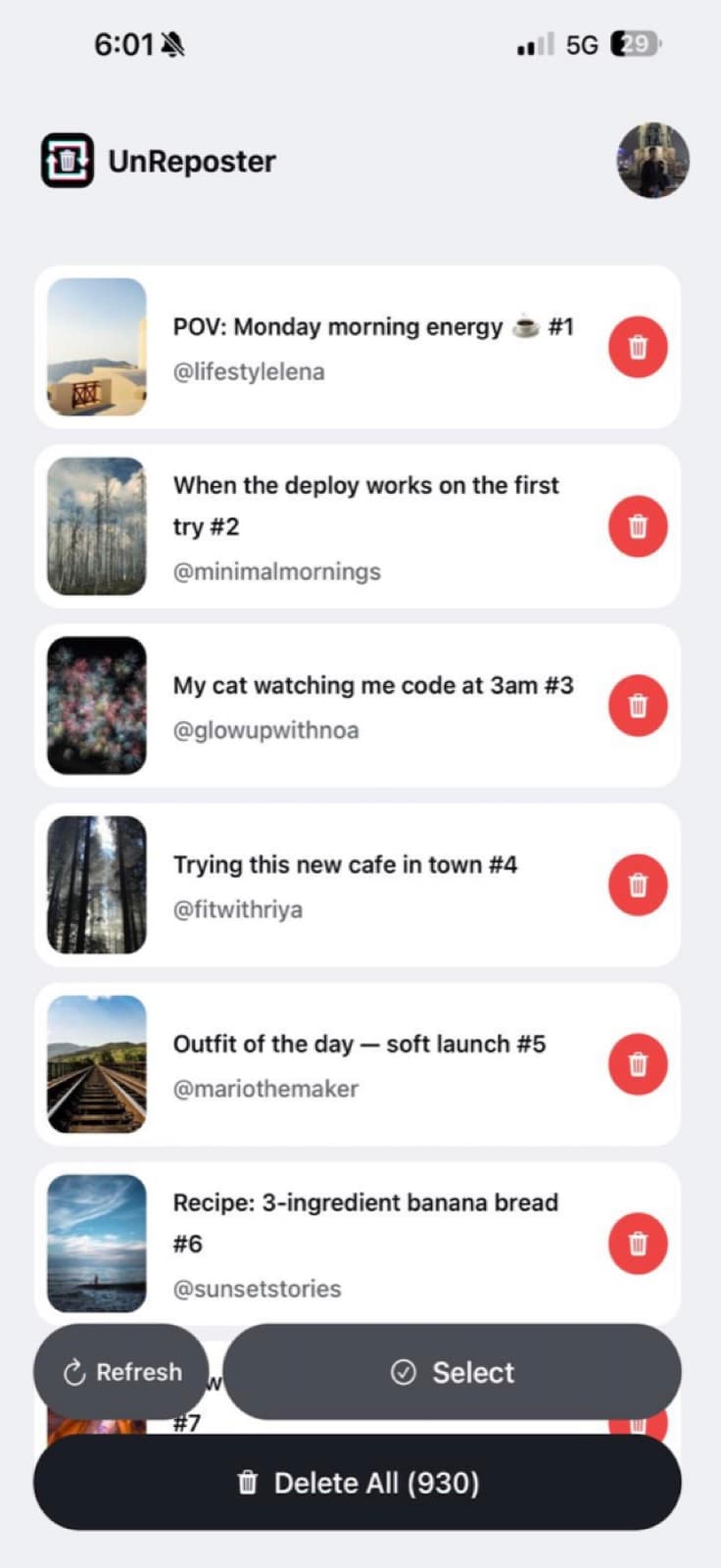
UnReposter pages through your entire Reposts tab and shows every item with its thumbnail, caption and original creator, in one scrollable list.
Pick one, some, or all of them
Tap a single video to remove just that one. Search by caption or creator, or filter by age, then multi-select to remove a batch. Or select everything to clear the whole list.
Run the removal queue
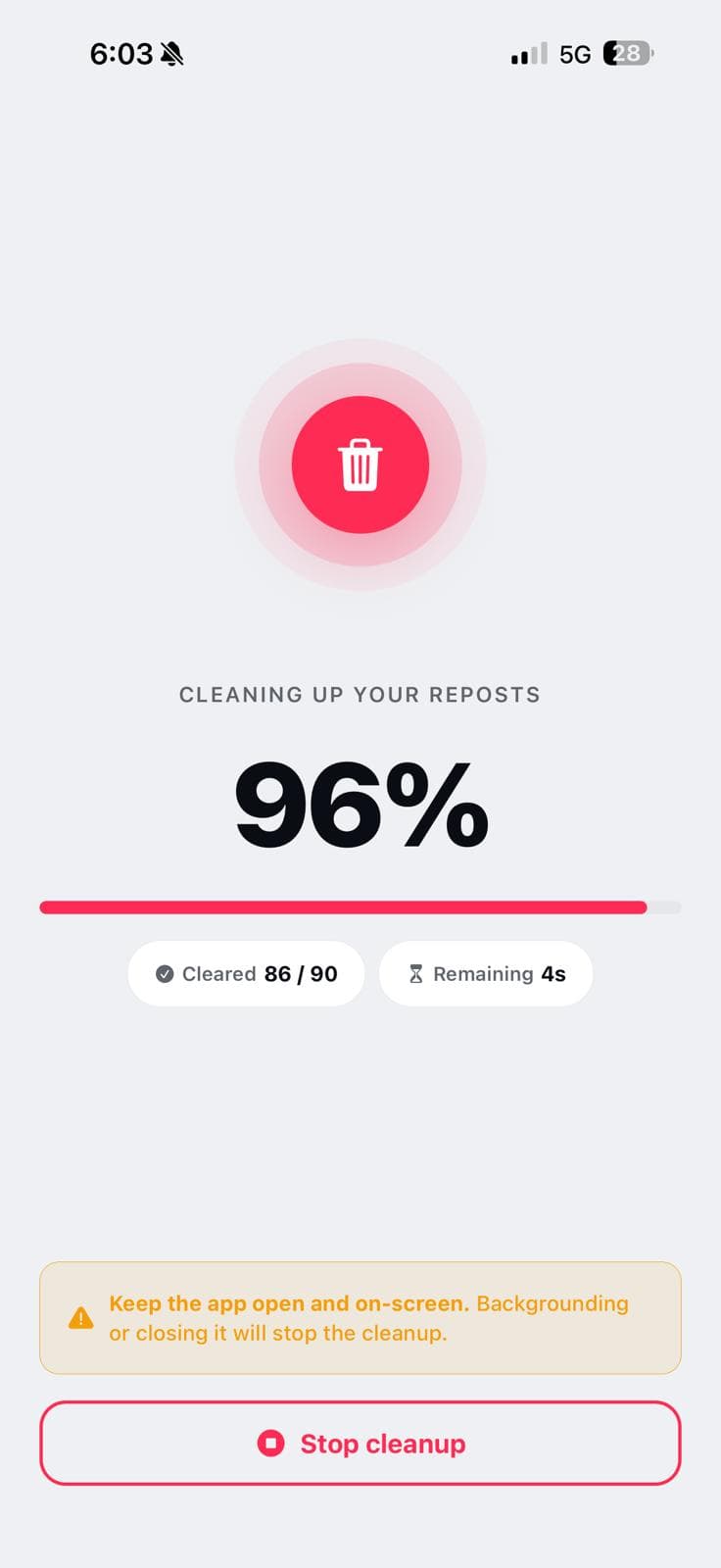
Removals run in sequence with a live counter, paced so TikTok accepts them, and stop cleanly if TikTok starts pushing back. Each one leaves your Reposts tab immediately.
Keep the app open and on-screen while the queue runs — backgrounding it stops the cleanup. If a run stops early for any reason, the reposts it did not get to are still in the list, so you select them again and continue; nothing is lost and nothing is repeated.
One, some, or all of them
The list is the whole point. Because every repost is in front of you with its caption and creator, the three common cleanups are each a short job:
- One specific repost — scroll to it, or search by the caption or the creator’s name, then remove it. No hunting through a tab that reloads every time something leaves it.
- A batch — filter by age (everything older than 90 days, for example) or search by a creator you no longer want on your profile, multi-select the results and run them.
- Everything — select all and start the queue. Fetching your history and removing up to 100 reposts a day is free; Premium raises that to 1,000 with no cooldown between removals.
The daily limit, and why cleanups stall
This catches out nearly everyone attempting a large clear-out. TikTok rate-limits how many reposts an account can remove in a rolling 24-hour window. When you cross it, removals do not produce a clear error — they quietly stop working.
The pattern is recognisable once you know it:
- Removals were succeeding, then several fail in a row.
- The confirmation appears but the repost is still there after a genuine refresh.
- It affects every repost equally, not one specific video.
The fix is time. Stop for the day and resume tomorrow; the window resets and your remaining list is untouched. Retrying hard against a limit tends to extend it. No app or extension can raise TikTok’s ceiling — anything advertising unlimited instant removal is describing something it cannot deliver.
UnReposter’s own limits sit inside that: 100 removals a day on the free tier, 1,000 on Premium with no cooldown between them. The queue stops itself when TikTok starts rejecting removals, and whatever it did not get to stays in the list for the next day. If removals are failing for another reason, the troubleshooting guide works through every cause in order.
What removing a repost actually does
It does:
- Stop the video being distributed to your followers’ feeds with your name attached.
- Remove it from the Reposts tab on your profile.
- Take effect immediately and permanently.
It does not:
- Delete or affect the original video in any way — the creator keeps their post, views and comments.
- Notify the creator that you removed your repost.
- Un-see it for people who were already shown the video while the repost was live.
- Touch your own posts, likes or favorites. Reposts are a separate thing entirely — see repost vs share vs favorite.
That last point matters for expectation-setting: cleanup is about what circulates from now on, not about retracting the past.
What to avoid
Demand for bulk repost removal is high enough that the search results include tools that are not safe to use. Two rules cover it:
- Never enter your TikTok password on a third-party website. Removing a repost is an authenticated action, but the authentication can happen entirely on your own device. Nobody needs your password on their server, and handing it over gives them full control of the account.
- Distrust “no login required” claims. Removing a repost is a write on your account. A tool that claims to do it without your session either is not doing it, or is doing it with credentials obtained some other way.
Browser-based options and why desktop is the weaker route are covered in can you delete TikTok reposts on a computer.
After the cleanup
With the list empty, the Reposts tab disappears from your profile on its own and nothing you previously reposted is circulating in your name. Removals are permanent; you can always repost something again deliberately.
To stop the pile rebuilding, the only habit that helps is knowing which button you are pressing. Repost is top-left in the share sheet and it is public; Favorites is a row down and it is private. If you want a clearer picture of what was exposed while the reposts were live, see who can see your TikTok reposts.
Frequently asked questions
How do you delete a repost on TikTok?
Can you delete all TikTok reposts at once?
Where is the Reposts tab on TikTok?
Does removing a repost delete the original video?
Is there a limit on how many reposts you can delete per day?
Do removed reposts come back?
Keep reading
How long does it take to delete all your TikTok reposts?
Around eight seconds per repost by hand — so 500 reposts is about an hour of solid tapping, and TikTok’s daily limit can stretch a big cleanup across several days. Here are the real numbers.
TikTok repost will not delete? Every fix that actually works
Remove repost does nothing, the video comes back, or the button is missing entirely. Here is what each symptom means and the fix for it, including the rate limit that silently blocks bulk cleanups.
Where are my reposts on TikTok? Finding your full repost history
Your reposts live in a tab on your own profile, but the list is hard to scroll and easy to lose your place in. Here is how to find it, what to do when the tab is missing, and how to see the whole history at once.
Who can see your TikTok reposts?
Reposts are public by default and surface in your followers' feeds with your name attached. Here is exactly who sees what, what privacy settings do and do not cover, and how to make them stop.